
Brief Summary
This video demonstrates how to use Time Machine in Mountain Lion to back up data to multiple destinations, enhancing data redundancy and security. It explains the setup process within Time Machine System Preferences, highlighting the benefits for users with portable computers or those seeking off-site backups.
- Time Machine in Mountain Lion supports multiple backup destinations.
- Ideal for users with portable computers or those needing off-site backups.
- Backups alternate between specified locations.
- Simple setup within Time Machine System Preferences.
Introduction to Multiple Time Machine Backups
The video introduces the feature in Mountain Lion that allows Time Machine to back up to multiple locations. This is particularly useful for users who have portable computers and switch between different locations such as home and office. By having multiple backup destinations, users can ensure data redundancy and have an off-site backup in case of any issues with the primary backup.
Configuring Time Machine in System Preferences
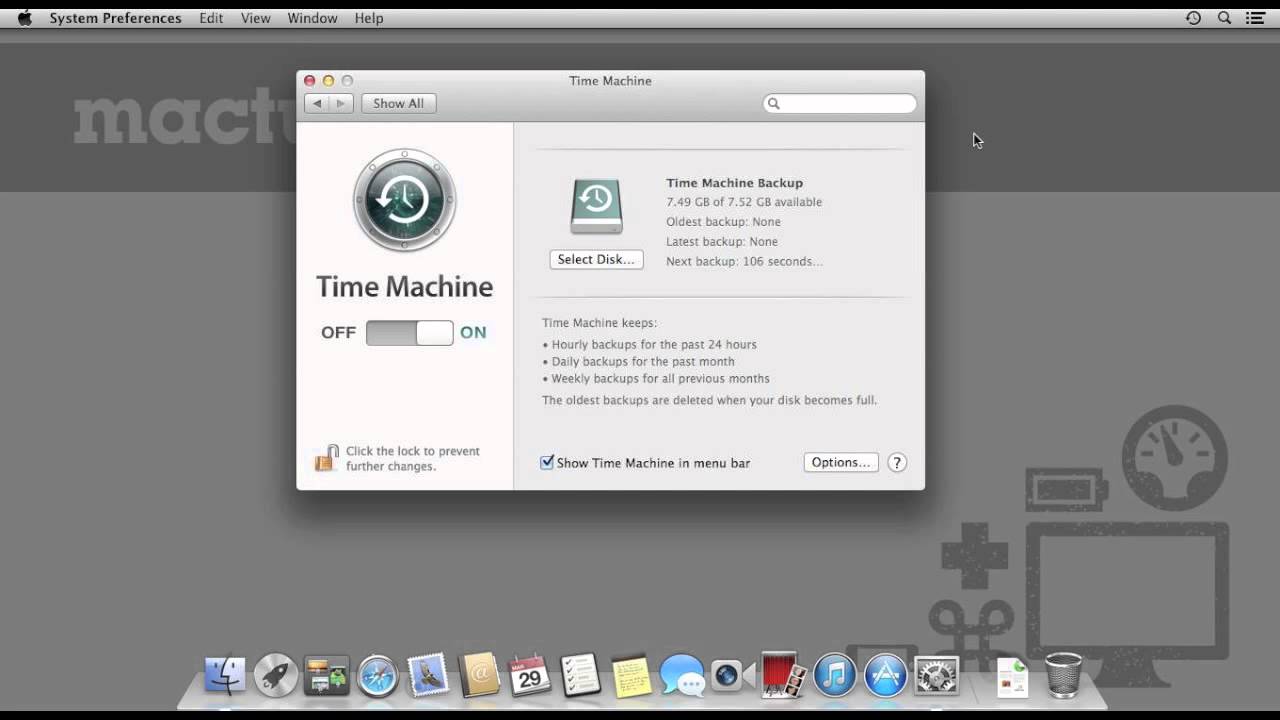
To set up multiple backup destinations, the presenter navigates to System Preferences and selects Time Machine. Initially, Time Machine is not configured, so the first step is to select a backup disk. The presenter chooses an external hard drive as the initial backup location. After selecting the disk, Time Machine is set up to back up to that hard drive.
Adding Additional Backup Locations
To add another backup location, the presenter clicks on "Select Disk" again and chooses a server as the second backup destination. Mountain Lion prompts whether to replace the existing backup location or use both. The presenter selects "Use Both," which allows Time Machine to back up to both the external hard drive and the server. Authentication is required when connecting to a server.
Managing and Utilizing Multiple Backups
Time Machine displays all configured backup locations, and more locations can be added or removed as needed. Backups alternate between the specified locations. For example, if there are three hard drives, Time Machine will back up to each one in sequence before returning to the first. This ensures that backups are distributed across multiple devices.
Practical Applications of Multiple Backups
The presenter explains the usefulness of having multiple backups through practical examples. For iMac users, having one primary backup on the desk and another portable hard drive stored off-site provides an additional layer of security. For portable Mac users, having a hard drive at both home and the office ensures that backups are running in each location. The presenter recommends using this feature to safeguard against backup drive failures.

